
Map
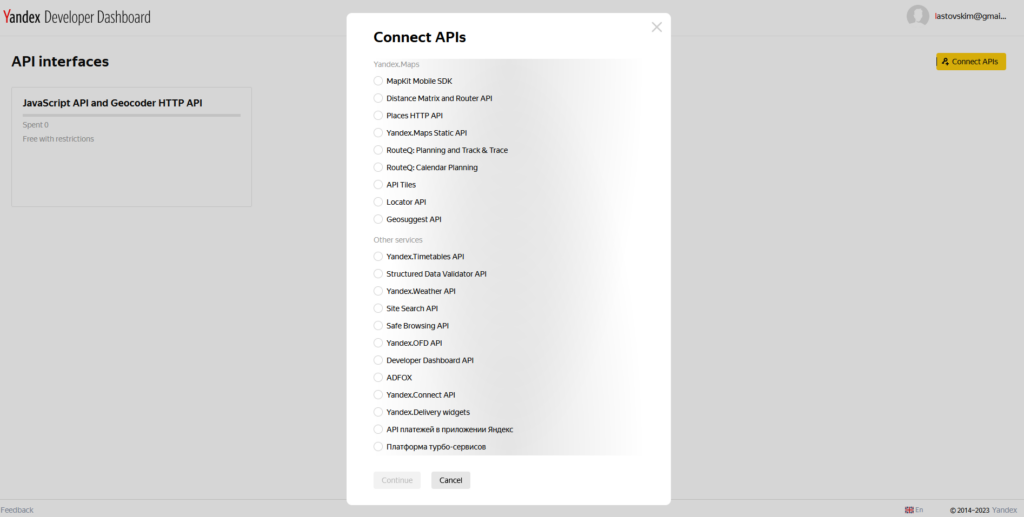
На сайте https://developer.tech.yandex.ru/keys/ получаем ключ для API
Выбираем JavaScript API and Geocoder HTTP API
Создаем проект и два файла index.html и mapbasics.js
Это код для index.html
<!DOCTYPE html>
<html>
<head>
<meta http-equiv="Content-Type" content="text/html; charset=utf-8" />
<title>Примеры. Размещение карты на странице.</title>
<!--
Укажите свой API-ключ. Тестовый ключ НЕ БУДЕТ работать на других сайтах.
Получить ключ можно в Кабинете разработчика: https://developer.tech.yandex.ru/keys/
-->
<script src="https://api-maps.yandex.ru/2.0/?load=package.standard&lang=ru-RU&apikey=<ваш API-ключ>" type="text/javascript"></script>
<script src="mapbasics.js" type="text/javascript"></script>
</head>
<body>
<header>
<h1>KML Yandex Map</h1>
</header>
<div id="map" style="width:400px; height:300px"></div>
<input type="button" id="destroyButton" value="Удалить карту"/>
<input type="button" id="createButton" value="Создать карту"/>
</body>
</html>
<style>
html, body, div, h1, input {
margin: 0;
padding: 0;
}
body {
font-family: Arial, sans-serif;
background-color: #f0f0f0;
text-align: center;
}
header {
background-color: #0077b6;
color: #fff;
padding: 10px;
}
h1 {
font-size: 24px;
}
#map {
width: 100% !important;
height: 600px !important;
margin: 20px 0;
}
input[type="button"] {
background-color: #0096c7;
color: #fff;
padding: 10px 20px;
border: none;
cursor: pointer;
}
input[type="button"]:hover {
background-color: #0077b6;
}
</style>
Код для mapbasics.js
ymaps.ready(init);

var myMap = null;

function init () {
    createMap();

    document.getElementById('createButton').onclick = function () {
        if (!myMap) {
            createMap();
        }
    };
}
//Создание карты
function createMap() {
    myMap = new ymaps.Map('map', {
        center: [59.441364, 24.697472],
        zoom: 14
    });
    //Создание метки на карте
    var myPlacemark = new ymaps.Placemark([59.441364, 24.697472], {
        hintContent: 'Minu koduaadress'
    });

    myMap.geoObjects.add(myPlacemark);
    //Удаление карты
    document.getElementById('destroyButton').onclick = function () {
        if (myMap) {
            myMap.destroy();
            myMap = null;
        }
    };
}
Результат https://lastovski21.thkit.ee/kml/
Weather
Для погоды я использовал weatherapi
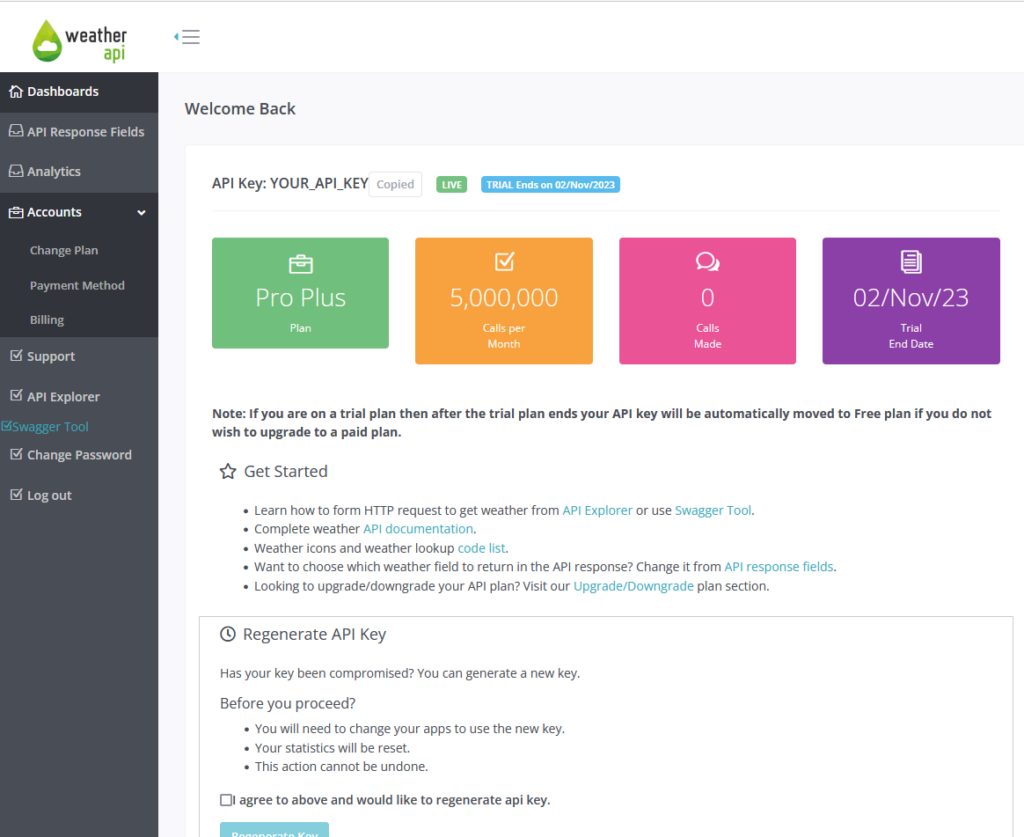
Для получения ключа переходим https://www.weatherapi.com/ и регистрируемся
Переходим в профиль и видим ключ
Создаем проект с файлами index.html, styles.css, script.js
Вставляем этот код
index.html
<!DOCTYPE html>
<html>
<head>
    <meta charset="utf-8">
    <title>Погода</title>
    <link rel="stylesheet" type="text/css" href="styles.css">
</head>
<body>

<div class="weather-container">
    <input type="text" id="city-input" placeholder="Введите город">
    <button id="search-button">Поиск</button>
    <div class="current-weather">
        <h2>Текущая погода</h2>
        <div class="weather-icon">
            <img id="weather-icon" src="" alt="Weather Icon">
        </div>
        <p id="temperature"></p>
        <p id="condition"></p>
        <p id="humidity"></p>
        <p id="wind"></p>
    </div>
    <div class="forecast">
        <h2>Прогноз на сегодня</h2>
        <p id="max-temp"></p>
        <p id="min-temp"></p>
        <p id="precipitation"></p>
    </div>

</div>
<script src="script.js"></script>
</body>
</html>
script.js
const apiKey = 'YOUR_API_KEY';

function getWeather(city) {
    const apiUrl = `https://api.weatherapi.com/v1/forecast.json?key=${apiKey}&q=${city}&days=1&aqi=no&alerts=no`;

    fetch(apiUrl)
        .then((response) => response.json())
        .then((data) => {
            const location = data.location;
            const current = data.current;
            const forecast = data.forecast.forecastday[0];

            document.getElementById('temperature').textContent = `Температура: ${current.temp_c}°C`;
            document.getElementById('condition').textContent = `Погода: ${current.condition.text}`;
            document.getElementById('max-temp').textContent = `Макс. температура: ${forecast.day.maxtemp_c}°C`;
            document.getElementById('min-temp').textContent = `Мин. температура: ${forecast.day.mintemp_c}°C`;
            document.getElementById('precipitation').textContent = `Осадки: ${forecast.day.totalprecip_mm} мм`;
            document.getElementById('humidity').textContent = `Влажность: ${current.humidity}%`;
            document.getElementById('wind').textContent = `Ветер: ${current.wind_kph} км/ч, ${current.wind_dir}`;

            const weatherIcon = document.getElementById('weather-icon');
            weatherIcon.src = `http:${current.condition.icon}`;
        })
        .catch((error) => console.log('Ошибка при получении данных:', error));
}

document.getElementById('search-button').addEventListener('click', () => {
    const city = document.getElementById('city-input').value;
    if (city) {
        getWeather(city);
    }
});
styles.css
body {
    font-family: Arial, sans-serif;
    background-color: #333;
    color: #fff;
}

.weather-container {
    background-color: #222;
    max-width: 400px;
    margin: 20px auto;
    padding: 20px;
    box-shadow: 0 0 10px rgba(0, 0, 0, 0.1);
    display: flex;
    flex-direction: column;
    align-items: center;
    text-align: center;
}

h1 {
    text-align: center;
    color: #fff;
}

h2 {
    font-size: 1.2rem;
    margin-top: 10px;
    color: #fff;
}

.weather-icon {
    text-align: center;
}

#weather-icon {
    width: 100px;
}

p {
    text-align: center;
    color: #fff;
}

#city-input {
    width: 100%;
    padding: 10px;
    margin: 10px 0;
    font-size: 16px;
    border: 1px solid #fff;
    background-color: #444;
    border-radius: 4px;
    color: #fff;
}

#search-button {
    padding: 10px 20px;
    font-size: 16px;
    background-color: #007bff;
    color: #fff;
    border: none;
    border-radius: 4px;
    cursor: pointer;
}

#search-button:hover {
    background-color: #0056b3;
}
На странице можно ввести название города и получить текущую погоду и прогноз на сегодня